
Workday is shaking things up with the Absence Calendar. Starting with the 2025R2 release, the old calendar is going away, and the new one will be the standard for everyone. On the surface, it might look like just a simple security tweak or a small change in process. But once you dig in, there are a few things worth talking about in more detail.
One of the biggest shifts is terminology. Workday now combines Time Off and Leave under a single, unified term: Absence. This means the calendar and related tasks are streamlined, but it also introduces changes across business processes, reports, and integrations. Let’s explore the areas that need your attention.
Business process transaction
Since workday have chosen a unified naming approach of absence , now its become difficult distinguish between Time off and Leave of absence transaction in worker profile, especially in Worker History tab
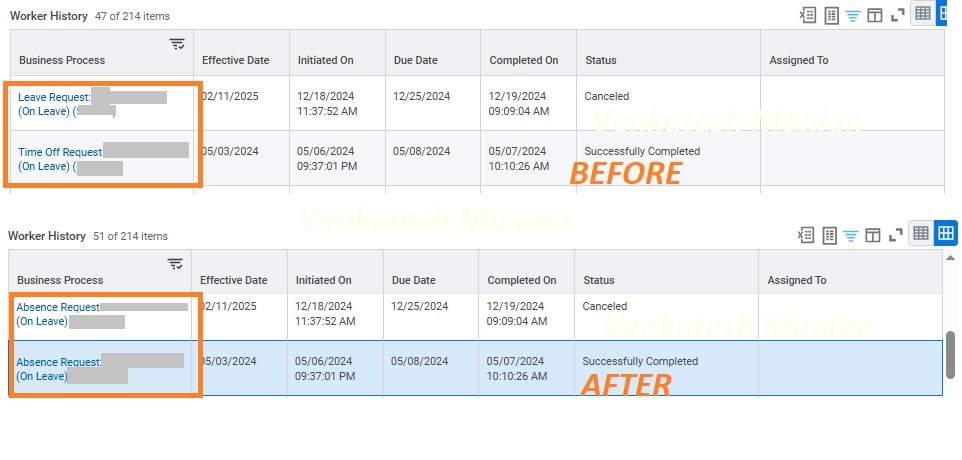
Currently, the only way to see them separately is by navigating:
Worker History → View Worker History by Category → Time Off and Leave section and scrolling through.
Reports And Integrations Impact
The scope of this update includes task names, worklets, reports, and labels on the worker profile to have a same naming format as Absence instead of Time off or Leave . Hence this change will impact custom reports, integrations, and any other configurations that contain hard-coded string references to legacy terminology
The general principle is to replace string usages of “Time Off” or “Leave” with “Absence” in the context of the absence management process.
For example, update the following:
- ‘Request Time Off’ should be updated to ‘Request Absence’
- ‘Correct Time Off’ should be updated to ‘Correct Absence’
- ‘Leave Request’ should be updated to ‘Absence Request’
- ‘Leave Return’ should be updated to ‘Absence Return’
👉 Action required: Review and update your custom reports, calculated fields, and integrations that rely on hard-coded terminology before the 2025R2 release. For example : If you have return any calculated filed to substring the transaction and compare it with legacy name, now those logics has to be updated .
Additional Comment Boxes
If you have already enabled the comment boxes with existing absences business process, workday now started showing you 2 comment boxes in request absence for worker task.
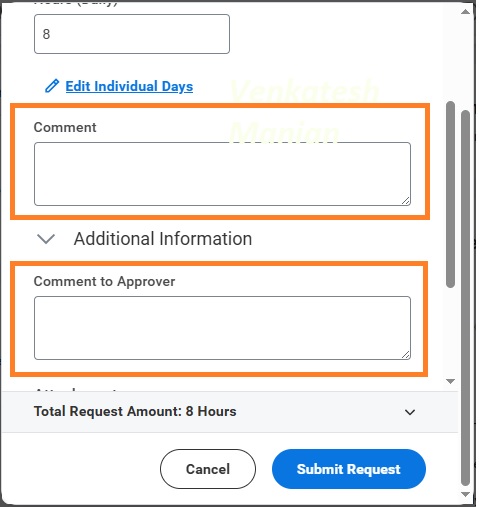
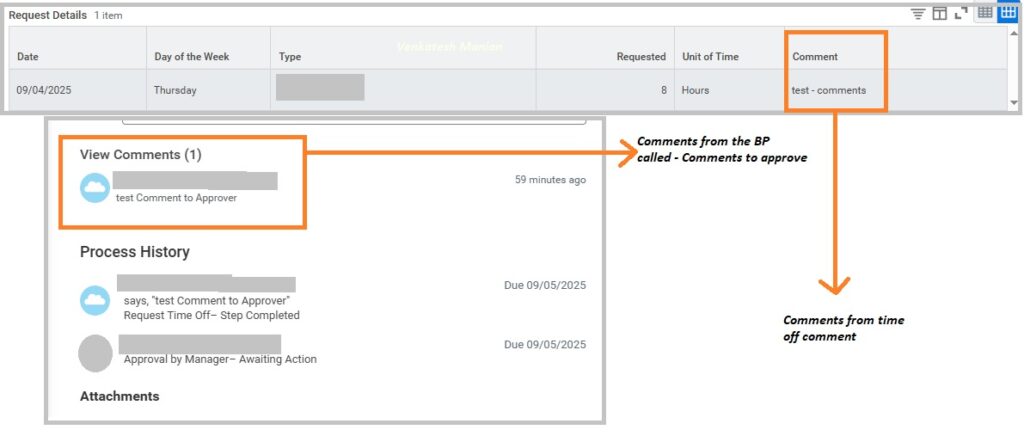
- Comments – Time off entry comments
- This comments are bundled with time off request and business object. If you see the above image , the comments are bundled under the request details.
- Comment to Approver – Business process comments.
- Where as the comment to approver field is from business process and its shows as a regular comments in the BP.
In this situation either you need to turn off either one the comments.
If you want to turn off Time off entry comments ,
- Access the the Configure Optional Fields task.
- From the By Functional Area prompt, select Request Time Off.
- Click OK.
- Add a row in the grid.
- From the Field prompt, select Time Off Entry Comment.
- From the Criteria prompt, select either:
- Hide For All so that the Comment field isn’t visible for all users.
- Security Group, and from the Hidden For prompt, select the security groups for which the Comment field isn’t visible.
- Click Done.
if you want to turn off the business process comments,
- Open task Edit Business Process Security Policy
- Select Request Time off
- Select the “Disable Comments” option under Policy Restrictions section
- Click Ok
- And activate pending security policy
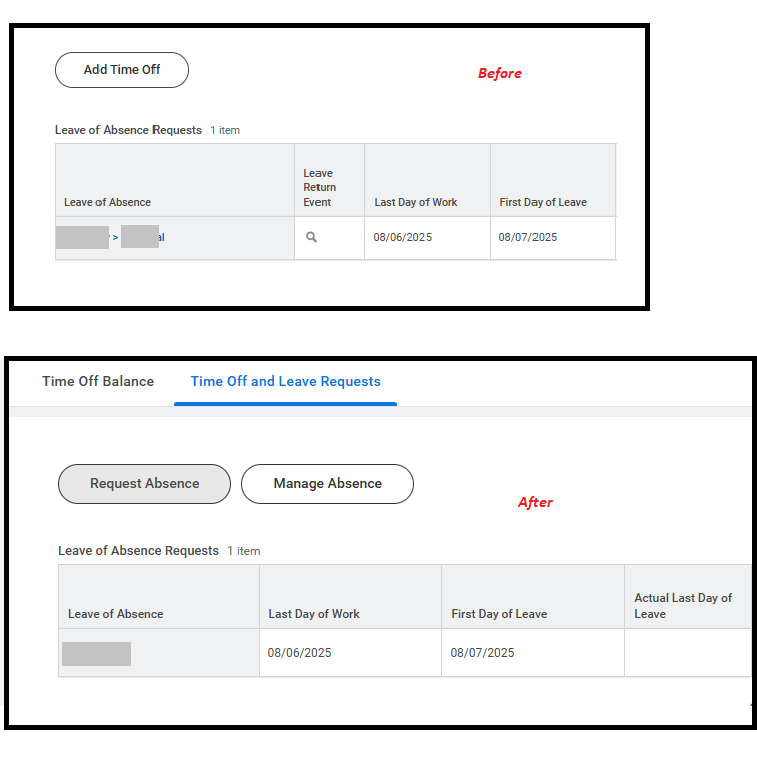
Leave Family is not visible on Time Off and Leave Requests tab
Its been observed that leave families are missing from the tab Time Off and Leave Requests on worker profile missing to leave families along with leave which was there up unit 2025R2 . Currently its showing only the leaves
Delegations
Since the initiationing action is changed for new absence calendar experience , users may face issue if they have already delegated the old initialing actions of Time off . Hence it advised that user needs to review their delegation and they need to update active delegations for legacy initiating actions, where necessary. Replace the legacy initiating actions with the corresponding initiating actions for the Absence Calendar Experience.
Please find the below table of Legacy Calendars vs Absence Calendar Experience
| Legacy Calendars | Absence Calendar Experience |
|---|---|
| Correct Absence | Edit Time Off for a Worker |
| Correct My Absence | Edit Time Off for Self |
| Correct My Time Off | Edit Time Off for Self |
| Correct Time Off | Edit Time Off for a Worker |
| Enter Absence | • Request Leave for a Worker |
| • Request Time Off for a Worker | |
| Enter Time Off | Request Time Off for a Worker |
| Place Worker on Leave | Request Leave for a Worker |
| Request Absence | • Request Leave for Self |
| • Request Time Off for Self | |
| Request Leave of Absence | Request Leave for Self |
| Request Time Off | Request Time Off for Self |
Ungrouped Time offs and Leaves
Since workday brining time off and leaves under one umbrella Absence , the time-off/leave plans are visible together in the request absence task as shown below. This causes confusion between user as they will get plenty of options
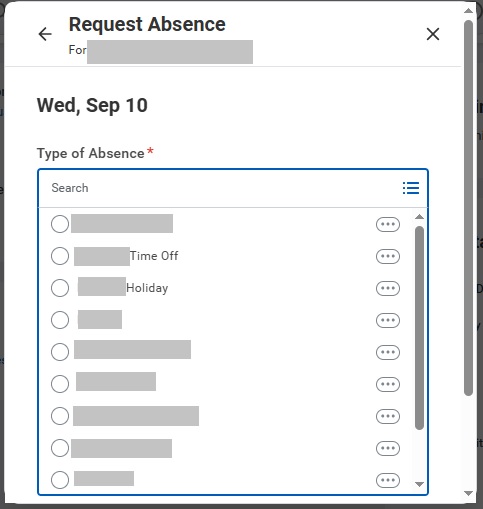
You can group together similar types of time offs, leave types, or absence tables, using a task Configure Absence Type Groups. It provides a cleaner structure .
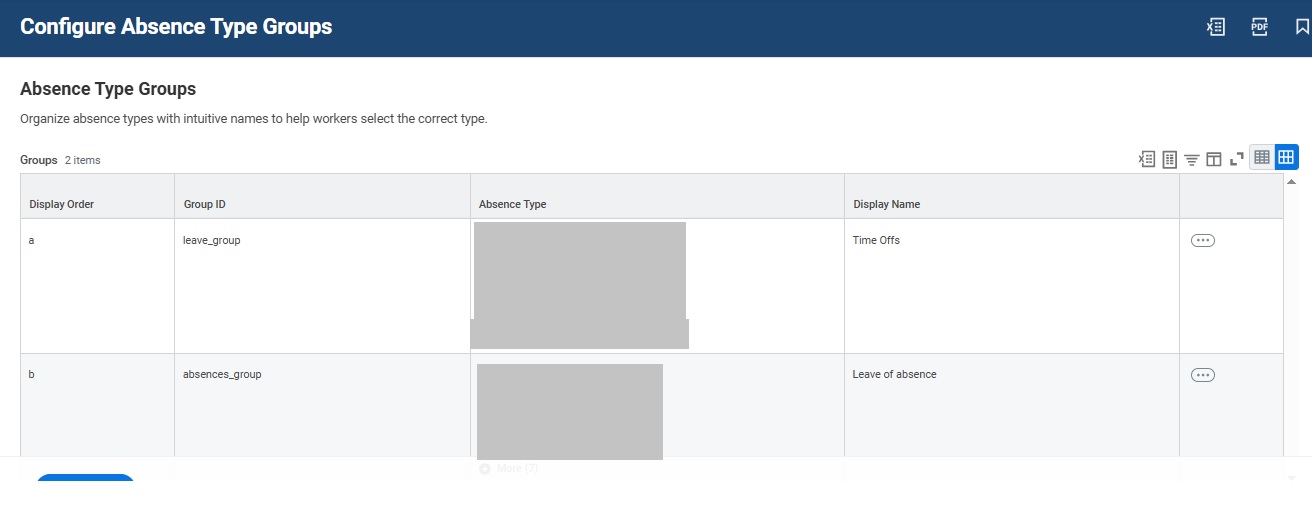
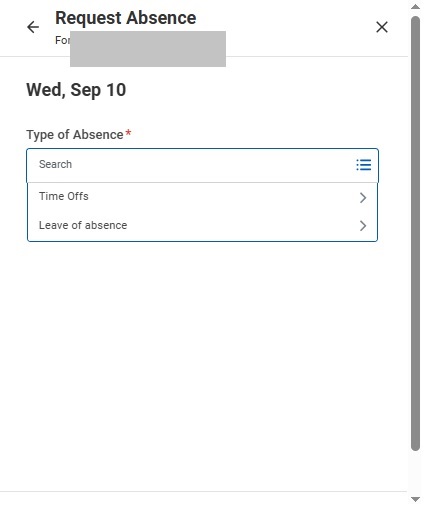
Once you have configured the absence type group , the calendar will show the plans according with the groups .
Links to Legacy tasks
On the Home page, add these tasks to any existing worklets or dashboards we’re using in place of legacy absence or time off tasks
- Manage Absence
- Request Absence
And also we need to review any To Do steps that contains legacy task we need to replace any legacy tasks with the corresponding tasks in the Absence Calendar Experience.
Help text for new calendar experience
Workday displays the help text in the Request Absence micro calendar based on the type of absence and the respective business process.
If you are entering a time off (after selecting the plan) , workday will display a help text configured in business process Request Time Off.
If you are correct a time off request, workday display help text from the Correct Time Off business process
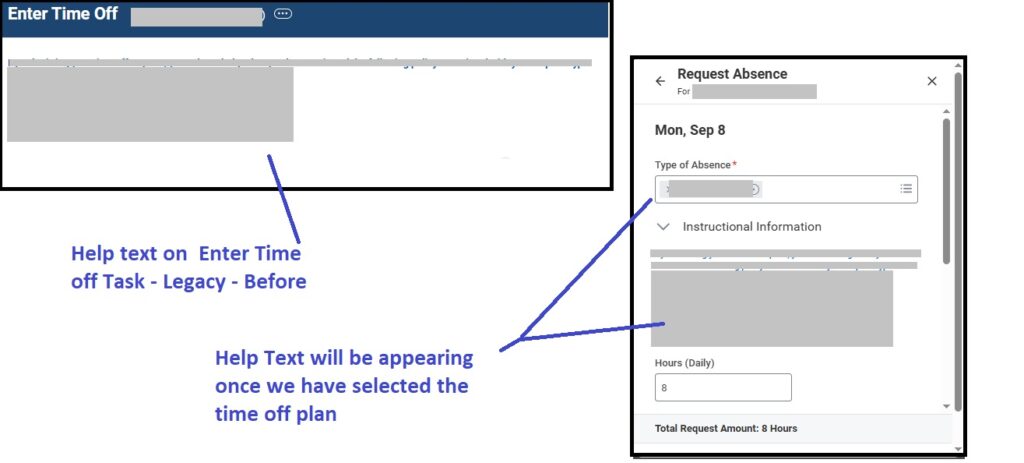
Access the Maintain Manage Absence Calendar Help Text task To set up help text on the Manage Absence calendar
Time Off and Leave Calendar
Workday plan to retire the Time Off and Leave Calendar, and advise that you use the more flexible Team Absence Calendar report, which enables you to edit time off requests as part of the new experience.
To configure the report follow this community post.